

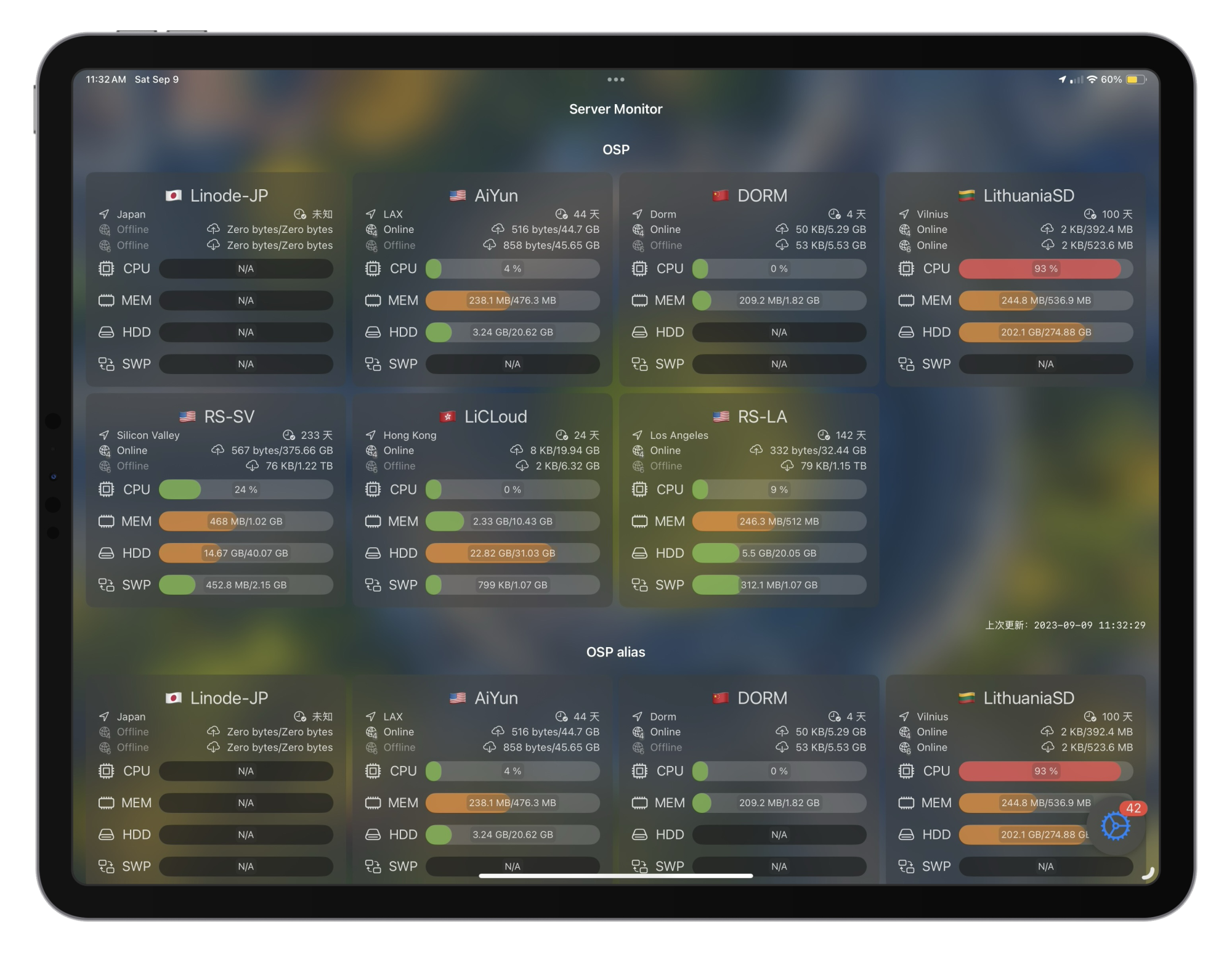
Debian and Ubuntu are popular Linux operating systems that offers powerful features and stable performance. When using them, you may encounter situations where you experience low memory. In such cases, increasing swap virtual memory can help solve this problem. This article will guide you on how to increase swap virtual memory on Debian 11.
Please note that the following steps are applicable to VPS utilizing KVM virtualization. While in some cases, certain steps may also apply to VPS based on OVZ, it is important to have the prerequisite of the hosting provider granting you the necessary permissions.
需要注意的是,以下步骤适用于使用KVM虚拟化的VPS。虽然在某些情况下,基于OVZ的VPS可能也可以添加swap,但这前提是主机提供商为你开放了必要的权限。
Checking the current swap status of the system:
Enter the following command in the terminal:
sudo swapon -sThis command will display the current swap status of the system. If the output is empty, it means that swap is not currently enabled.
Creating a swap file:
Enter the following command in the terminal:
sudo fallocate -l 2G /swapfileThis command will create a 2GB swap file. If you need a larger swap file, change the “2G” in the command to the desired size.
Setting file permissions for the swap file:
Enter the following command in the terminal:
sudo chmod 600 /swapfileThis command will set the permissions for the swap file to 600, allowing only the root user to have read and write permissions.
Formatting the swap file:
Enter the following command in the terminal:
sudo mkswap /swapfileThis command will format the swap file.
Enabling the swap file:
Enter the following command in the terminal:
sudo swapon /swapfileThis command will enable the swap file.
Setting up automatic mounting of the swap file on boot:
Enter the following command in the terminal:
sudo echo '/swapfile none swap sw 0 0' | sudo tee -a /etc/fstabThis command will add a line to the /etc/fstab file, ensuring that the system automatically mounts the swap file during startup.
Checking the swap status:
Enter the following command in the terminal:
sudo swapon -sThis command will display the current swap status of the system. If the output includes /swapfile, it means that the swap file has been successfully enabled.
By following these steps, you have successfully increased the swap virtual memory on Debian/Ubuntu. When the system runs out of memory, it will automatically use the swap file to expand memory, thereby improving system performance and stability.
Ref: https://ayw.ink/3439.html